Boats do not wait. Miss the 5:15 off Circular Quay and the next one can be half an hour away, which is a long time to stand on a pontoon watching the one you wanted head off up the harbour. That is what push is for. Set your window once and your phone nudges you a few minutes before each departure, screen off, browser shut, nothing left running in a tab.
Switching it on is the only fiddly bit and it is fiddly in a different way on each phone. Apple buries the key step in a menu it moved in iOS 26. Android asks a second question that is very easy to dismiss without reading. So I sat down and walked the whole thing on iOS 26 and on Android 16, grabbing a screenshot at every tap. Here it is, start to finish.
On iPhone or iPad
Apple only sends web push to sites that live on your Home Screen. That is Apple's rule for every website on the internet, so it is not something I can skip for you. It is why iPhone needs a handful more taps than Android. You do it once and then never again.
1. Tap the three dots in Safari, then Share
Open sydneyferryalerts.com in Safari and look down at the bottom right corner. Tap the three dots. A menu slides up with Share sitting at the top of it.
This is where most people get stuck. Safari used to keep a Share button right there in the toolbar and just about every guide still written tells you to tap it there. iOS 26 tucked it away in this menu instead. So if you have been prodding at the bottom of the screen looking for a button that has vanished, you are not going mad! iPads and older iPhones still have the toolbar button and it does the same job.
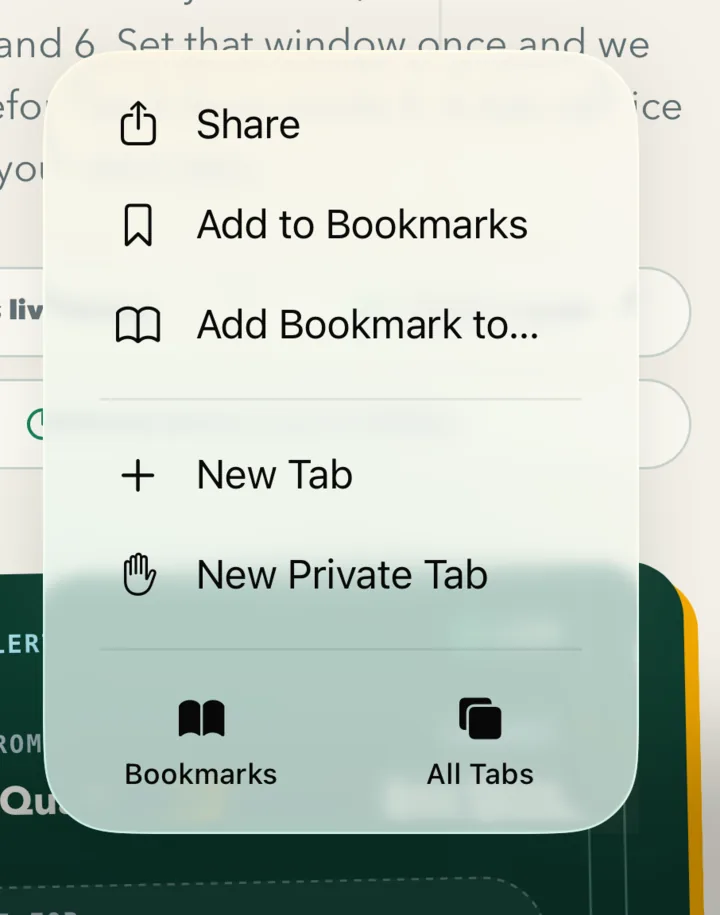
2. Scroll down and pick Add to Home Screen
You will not see it in the first row of icons. Scroll the share sheet down or hit View More and Add to Home Screen is in the list below with a little plus beside it.
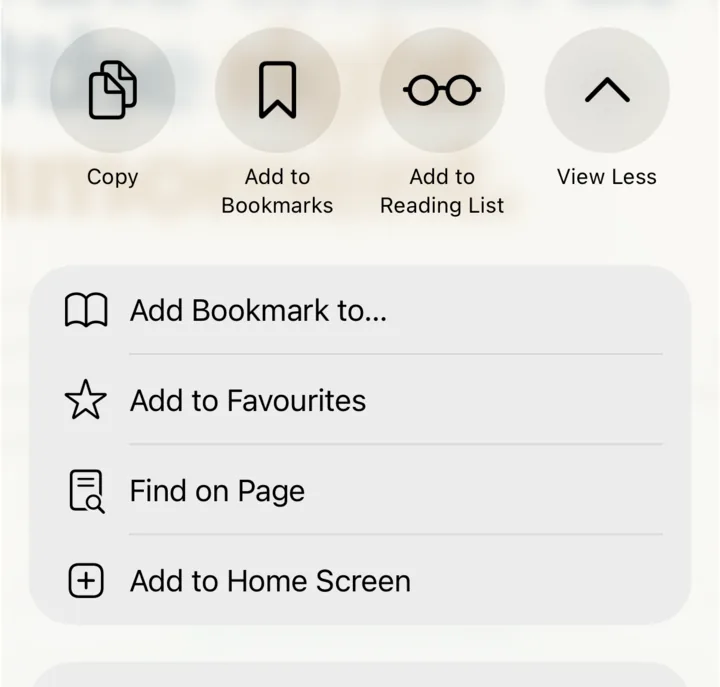
3. Hit Add
The name and web address come pre-filled and Open as Web App is already turned on, which is the switch that actually does the work. Nothing to change. Tap Add up in the corner.
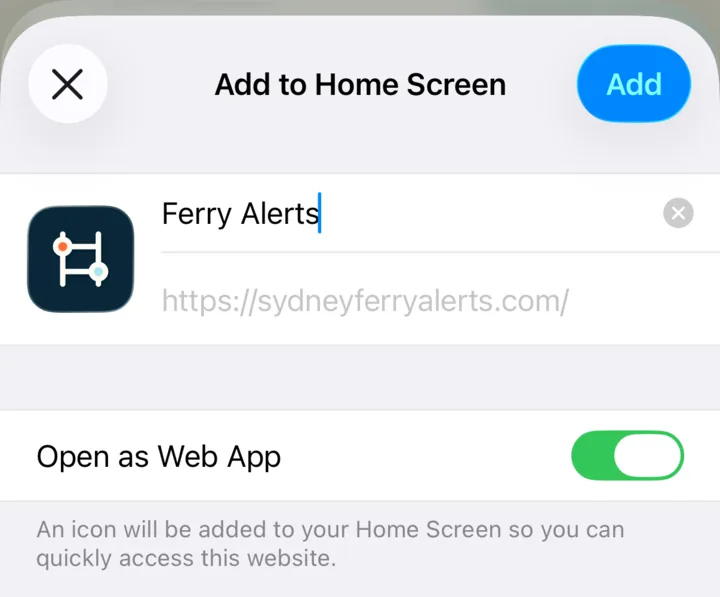
4. Open the new icon, not your old Safari tab
Here is the second trap. There is an icon on your Home Screen now and push only works from inside that icon. Go back to the Safari tab you already had open and set your alert up there and the phone has no way to deliver anything, so you would be left waiting on a notification that was never going to come. Tap the icon.
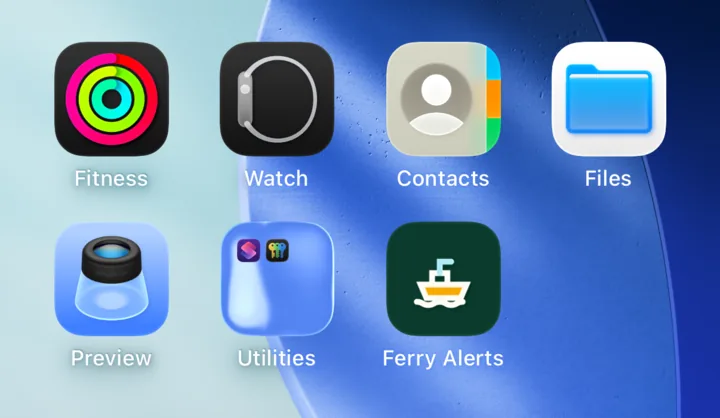
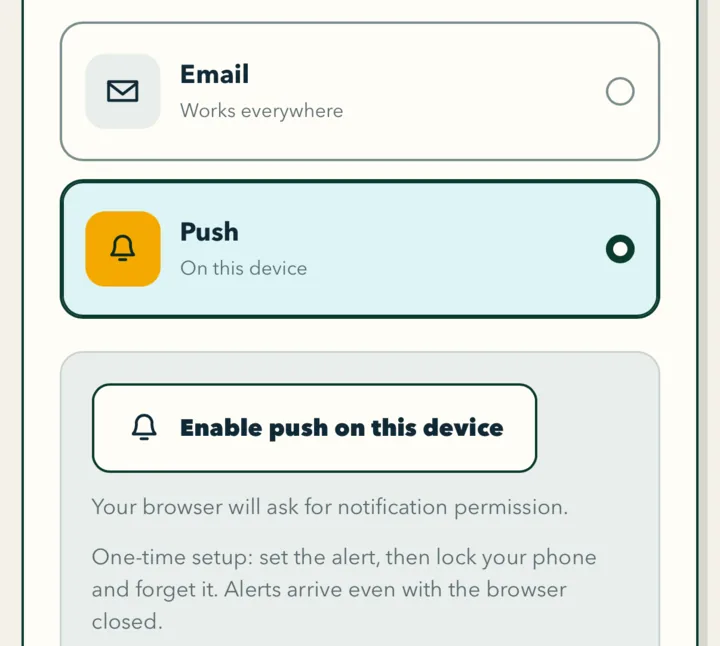
5. Scroll to Delivery and tap Enable push on this device
Build your alert the normal way, then keep scrolling to step 04, Delivery. Push is picked for you already. Tap Enable push on this device.
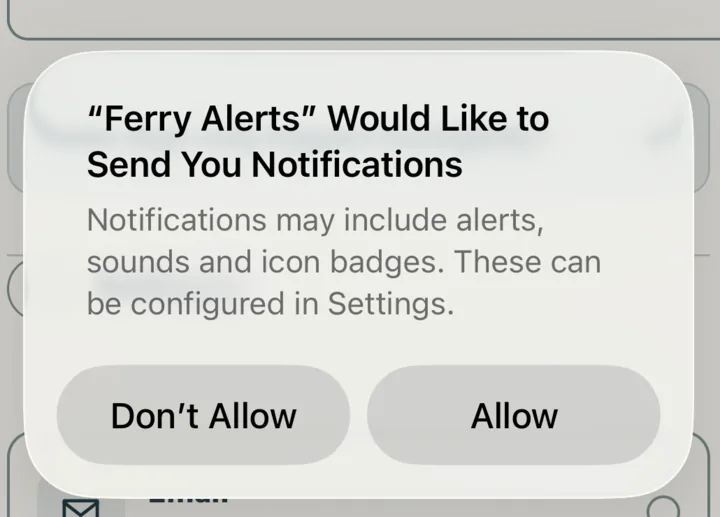
6. Tap Allow
Your phone asks whether Ferry Alerts is allowed to send you notifications. Tap Allow. The button flips to “Push enabled” with a tick beside it and you can go and finish your alert.
On Android
Android is the gentle one. Chrome has handled web push for years and there is no Home Screen business at all, so you can do this from the ordinary site in your browser.
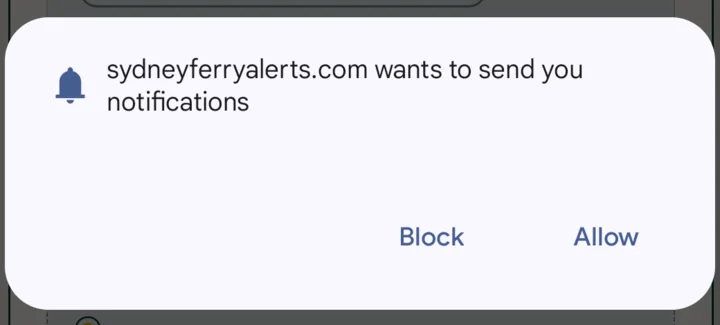
1. Tap Enable push, then Allow
Open sydneyferryalerts.com in Chrome, scroll to Delivery, leave Push where it is and tap Enable push on this device. Chrome asks if the site may send you notifications. Tap Allow.
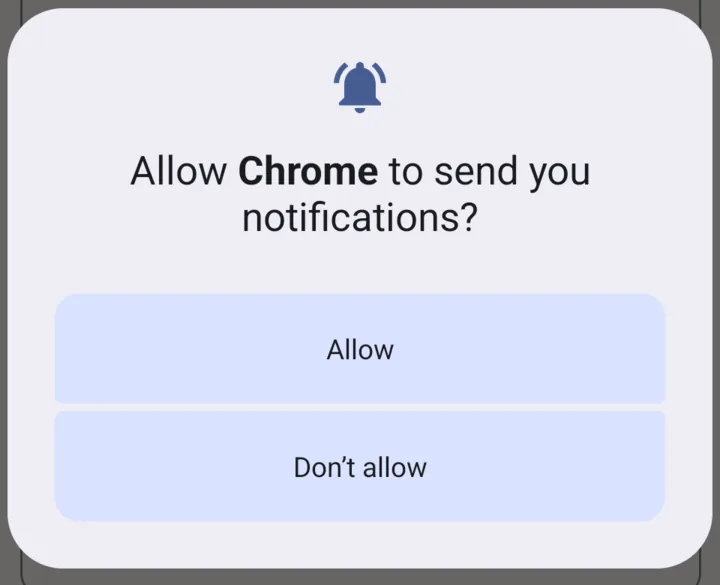
2. Say yes to the second prompt as well
Android 13 and up throws a second question at you. This one is asking about Chrome itself rather than about my site. It only shows up if you have never let Chrome put a notification on your screen before.
Do not wave this one away! Allowing the site but not Chrome leaves you with a permission that means nothing, because Android simply will not let Chrome display anything. It all looks like it worked and then the alerts never come. Of every “push seems broken” message I get about Android, this is the answer nearly every time.
3. Look for the tick
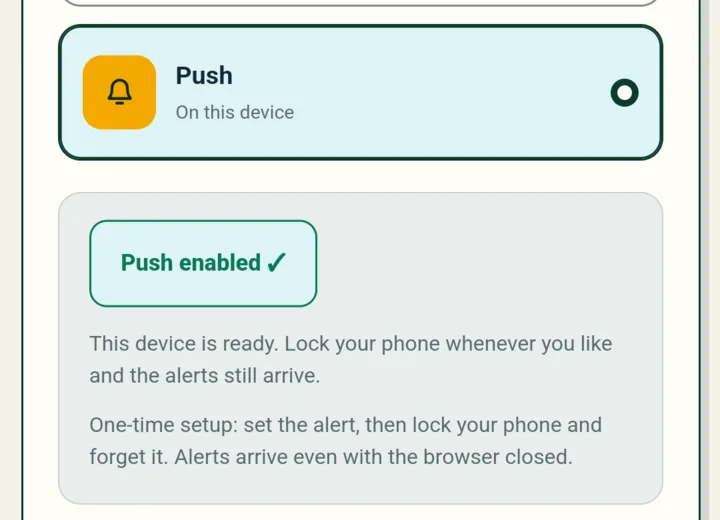
The button becomes Push enabled with a tick and the line underneath confirms the device is ready. From here you can lock the phone and put it in your pocket. The alerts keep coming.
Set it up and nothing turns up?
- iPhone: did you use the Home Screen icon? Building the alert in a Safari tab rather than the installed icon is the single most common slip. Open the icon and go through it again in there.
- Android: check Chrome's own notification setting. Settings, then Apps, then Chrome, then Notifications. With that switched off nothing reaches you regardless of what the site reported.
- Have a look at Focus or Do Not Disturb. A work Focus that only lets a short list of apps through will sit on your alerts until you next unlock the phone.
- Your alert only runs inside the window you set. Weekdays 4:45pm to 6:00pm means a quiet Sunday morning. That is the thing working properly rather than failing.
- Had enough? Switch to email. It reaches any device with no setup at all beyond clicking the confirmation link. That link only lives for 24 hours, so click it while it is in front of you.
So which device gets the alert?
Whichever one you tapped Enable push on this device on and that one alone. The subscription belongs to that browser on that handset, which is exactly what the button is telling you. Set it up on the phone that goes in your pocket, not the laptop parked at your desk.
Want a second screen covered too? Make a second alert over there or go with email, which turns up wherever you read your mail. New phone down the track means running through this once more, because the old subscription stayed behind with the old handset.
Two things worth knowing once it is running
Every alert has an I'm on board button on it. Tap that as you walk up the gangway and the rest of the day's alerts go quiet, then they pick up again on your next travel day. That one button is the difference between a handy nudge and a phone buzzing away at you while you are already sitting out the back watching the wake.
Each alert names the next couple of sailings behind yours as well, so a missed boat arrives with its fallback already written on the screen. Still deciding how much notice to give yourself? I worked through that in working out when to leave work to catch your ferry. It matters more at the Quay than most people expect, because the wharf your route leaves from can change your walk by a good few minutes. If you are still weighing up whether this beats the official channels, the rundown of ferry delay notifications goes through what each one actually tells you.
One genuinely useful habit: get push sorted at home on a calm evening rather than on the wharf. The Home Screen step takes about two minutes at the kitchen bench and feels twice as long with wind coming off the water and a boat you can already see.
See you out on the harbour! Here's to hearing about the next cancellation before you have left the office, not after.